How to store an external drive in iCloud without filling up your Mac
If you've tried to move a full external drive into iCloud Drive, you've probably hit the same wall: macOS starts copying everything onto your Mac first, and within minutes you see “Your disk is almost full.” Here's why iCloud does this, why the common workarounds fail, and how to mirror a drive to iCloud that's far larger than your Mac's storage.
Why iCloud Drive fills up your Mac
iCloud Drive was designed to sync a folder, not to archive a big external disk. When you drag a large folder into iCloud Drive, macOS has to stage every file locally before it can upload it to the cloud. On a Mac with 256 GB or 512 GB of storage, a 1 TB external drive simply won't fit — the local copy fills your startup disk long before the upload finishes. Even with Optimize Mac Storage turned on, macOS still needs room to stage files on their way up, and it can't evict them fast enough to keep pace.
The workarounds that don't actually work
- Dragging the folder into iCloud Drive. This is what triggers the "disk full" error in the first place.
- rsync or shell scripts. They copy files faster than iCloud can upload and evict them, so the local disk fills and the copy dies with "No space left on device."
- Optimize Mac Storage. It helps once files are in iCloud, but it doesn't solve the staging bottleneck during the initial upload.
- Turning the drive into an iCloud Drive folder. iCloud isn't built to point at an external volume, and it still wants to download everything back down.
The fix: trickle the files up and clear space as you go
The trick is to move files through the bottleneck a few at a time — upload a file, wait for iCloud to confirm it's safely in the cloud, then evict the local copy to free the space before moving to the next one. Done manually this is tedious and error-prone. That's exactly the job we built DriveTwin to do automatically.
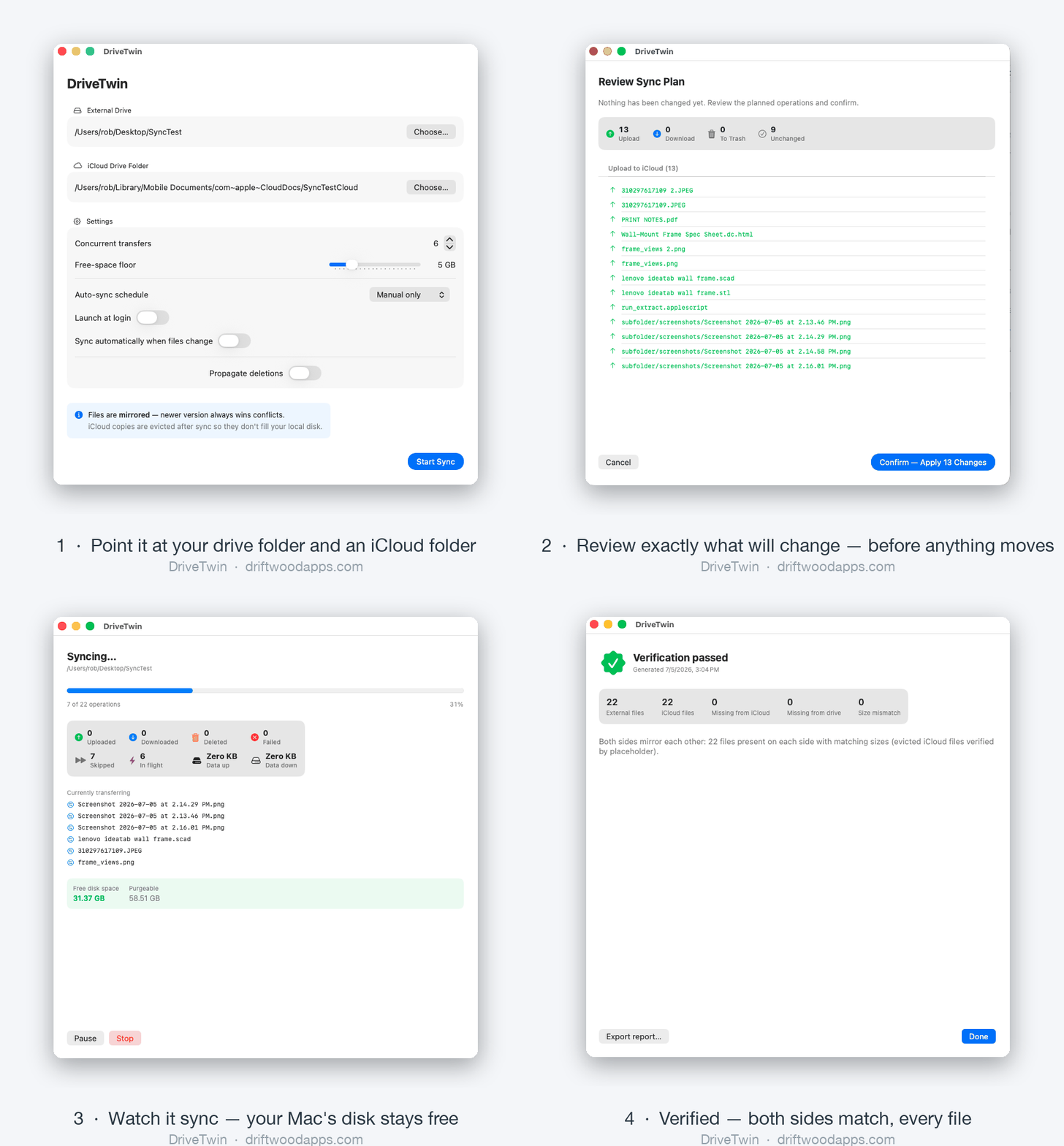
DriveTwin keeps an external-drive folder and an iCloud Drive folder in a full two-way mirror. It uploads files, confirms each one landed in iCloud, and releases the local copy — so hundreds of gigabytes end up safe in the cloud while your Mac's disk stays free. It watches your free space the whole time and pauses if it ever runs low, so you never see "disk full" again. Files stay downloadable from iCloud on demand.
What makes it safe
- Preview before anything changes. Every sync shows exactly what it will upload, download, or remove — you confirm first.
- Deletions go to the Trash, and deletion-syncing is off by default, so nothing disappears by surprise.
- Newer version wins on conflicts, and an edit always beats a delete — your work is never silently overwritten.
- Built-in verification confirms both sides match, every file.
Mirror your external drive to iCloud — without filling your Mac.
DriveTwin for macOS · $5.99 one-time · no subscription
Get DriveTwin